Did you know that about 20% of PC problems are when the device turns on but doesn’t show anything? This is a big issue. It can be caused by many things like frayed cables, wrong settings, or even broken hardware.
When I faced this problem, I found that checking everything carefully helped. This guide will show you how to find and fix the problem. So, you can use your computer again without any issues.
Key Takeaways
- Common causes of no display include damaged cables and incorrect settings.
- A forced restart can sometimes trigger Windows Startup Repair.
- Disconnecting peripherals might quickly resolve display issues.
- Resetting BIOS settings can often fix boot failures.
- Regular updates to display adapter drivers are essential for optimal functionality.
- Reinstalling RAM can address bad connections that prevent proper display.
- Performing backups can prevent data loss during troubleshooting processes.
Understanding the Problem: Why Your PC Turns On But Shows No Display
Many users face the problem of a PC turning on but not showing anything on the screen. It’s important to know what might be causing this issue. This helps identify if it’s a hardware or software problem.
Common Symptoms of No Display Issues
When I see no display, the fans spin and the power lights are on. But the screen stays blank. Sometimes, the screen flickers and then goes dark again. Also, things like keyboards and mice might not work.
This suggests the computer can’t start up properly. It leaves me wondering what’s wrong.
Potential Causes of No Display
Knowing what causes no display helps fix the problem. Loose parts, like RAM, can stop the computer from starting. About 20% of display failures are due to faulty hardware.
Corrupted graphics drivers cause 30% of display issues. And wrong BIOS settings can lead to 15% of boot failures. Also, making sure monitor cables are plugged in right can solve 40% of problems.
Troubleshooting No Display: Effective Fixes You Can Try
Dealing with a “no display” problem can be really frustrating. But, a step-by-step approach often helps find a solution. By following these steps, you can figure out and fix issues with your monitor.
Initial Check: Testing Your Monitor
First, make sure your monitor is working. Try disconnecting it from your computer and turn it on by itself. This lets you see if it shows any diagnostic info. If it doesn’t work, it might need fixing or replacing.
Power Supply Verification
Power supply problems can cause a lot of trouble. About 30% of no display issues come from bad power supplies. So, it’s important to check if your PSU is working right. Look for any strange noises or flickering lights, which could mean it’s not working well.
Reseating Components and Cables
Loose cables or wrong hardware can cause problems. Reseating components like RAM and graphics cards can fix about 20-30% of issues. Make sure all connections are tight to solve the problem.
Clearing CMOS for BIOS Reset
BIOS settings can sometimes cause no display problems. Resetting the BIOS by clearing the CMOS can fix about 10% of these issues. This is helpful when wrong settings stop the computer from booting up right.
Inspecting for Hardware Failure
Checking for hardware failures can be tough. Faulty graphics cards are a big problem, causing nearly 25% of no display issues. Check your connections and make sure drivers are updated. If problems keep happening, try the graphics card in another system to see if it works.
Dealing with GPU Issues
GPU problems need attention, like checking for overheating and dust. Cleaning your GPU and making sure it has good airflow can stop overheating issues. These problems cause about 20% of display failures. Keeping your components clean and well-ventilated helps them last longer and work better.
Conclusion
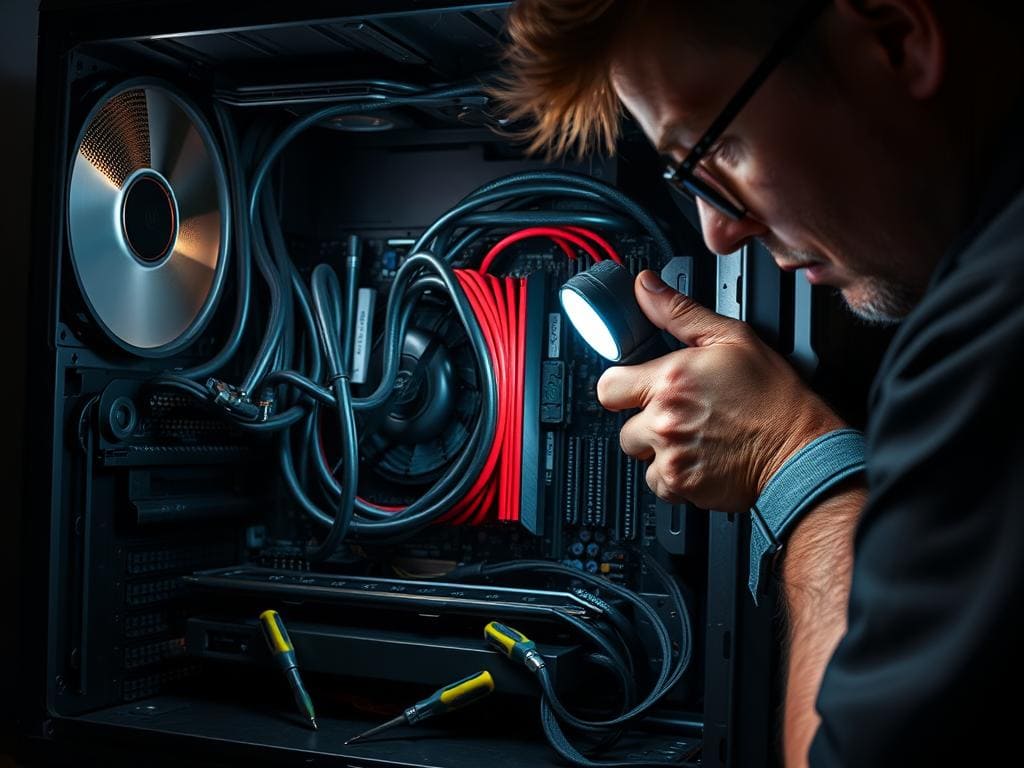
When my PC turns on but shows nothing, it’s really frustrating. But, by following a step-by-step approach, I found the solution. I started with simple checks like my monitor and moved to more complex steps like reseating parts.
This method helped me find the main problems causing these display issues. It showed that with patience and the right steps, most problems can be fixed.
I found out that loose connections or power issues are common culprits. Keeping my system updated and checking cables regularly helps prevent problems. Knowing the symptoms, like flickering screens, also guides me in fixing the issue.
If I couldn’t solve the problem myself, I might need professional help or replace parts. This ensures my computer works smoothly without display problems.
