Did you know using dual monitors can make you up to 42% more productive? This is true for IT workers, designers, and engineers. A simple dual monitor setup can greatly improve your work experience. But, setting up a second monitor might seem hard, right?
With the right tools, you can do it in under five minutes. This turns your workspace into a productivity machine. I’ll show you how to connect your monitors via HDMI, DisplayPort, or USB-C easily.
Key Takeaways
- Dual monitors can boost productivity significantly.
- Setting up dual monitors takes as little as five minutes.
- Proper equipment is essential for a successful dual monitor setup.
- Many users report enhanced multitasking with dual monitors.
- Connecting through HDMI or DisplayPort ensures optimal performance.
Understanding the Benefits of a Dual Monitor Setup
Setting up dual monitors can change how we work. It brings big benefits like a productivity boost and more space to work. I’ve seen how it makes tasks more efficient and effective.
Boosting Productivity with Multiple Screens
Using two monitors can really boost productivity. Studies show it can make work 20-30% better, for tasks like data analysis or graphic design. You can have many apps open at once, making it easier to find what you need.
People often say they get things done faster. They can save up to 2.5 hours a week.
Improving Workflow Efficiency
Having efficient workflows is key to meeting deadlines and keeping project quality high. With dual monitors, you can look at important data on one screen while working on another. This makes tasks faster and more accurate.
It also helps in creative fields, making presentations and web conferencing smoother. This leads to better teamwork and communication.
How to Set Up Dual Monitors Easily
Setting up dual monitors can boost your productivity and make your workflow smoother. First, you need the right gear, ready for HDMI setup and other connections. Then, connect everything physically for a solid dual monitor setup. Lastly, adjust Windows settings to make both screens work well together.
Gather Necessary Equipment
To start with dual monitors, gather all needed items. You’ll need a second monitor, cables like HDMI or DisplayPort, and a power source. Make sure your computer can handle multiple monitors, as most PCs can.
Physical Connection Process
With your gear ready, connect the monitors. Most monitors come with the right cables, making it simpler. Connect the first monitor to your graphics card’s main output, usually via HDMI.
For the second monitor, use a DisplayPort output if possible. If not, you might need an HDMI adapter for compatibility. This ensures your GPU sends info to both screens smoothly.
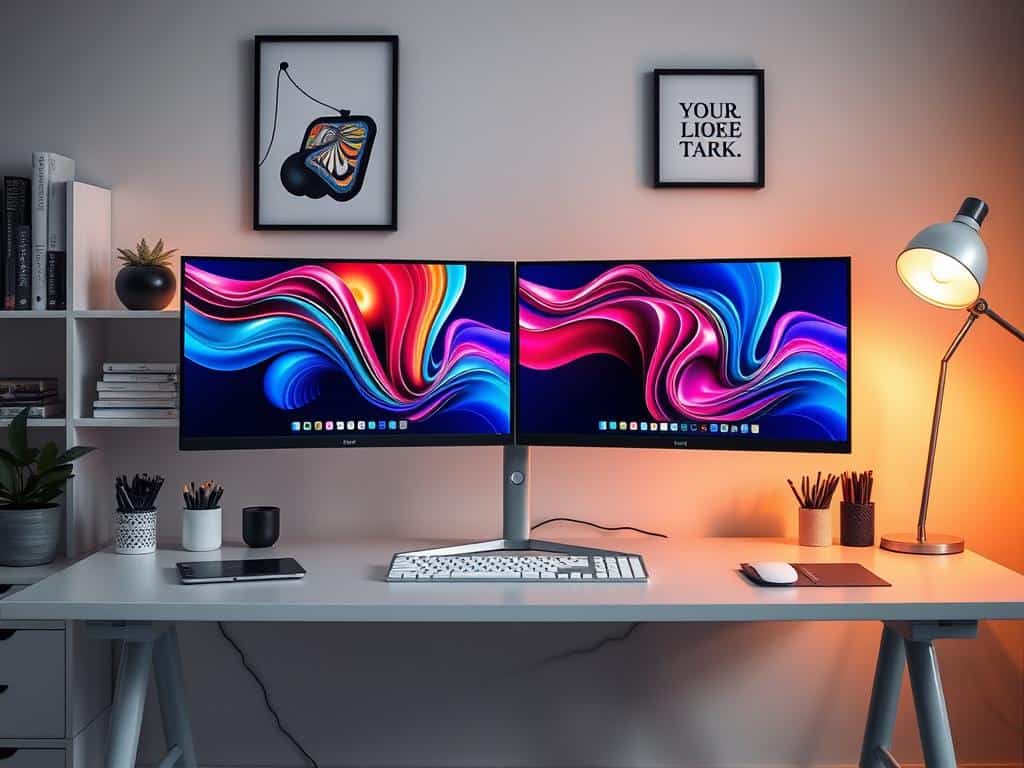
Configuring Windows Settings
After connecting everything, Windows will detect your monitors. The main display is your primary screen, and the others are secondary. You can adjust settings to extend your displays for better multitasking.
In the “Rearrange your displays” option, customize the layout. This lets your cursor move easily between monitors. You can also tweak scaling and orientation for a more productive workspace.
Conclusion
Getting a dual monitor setup has changed my workspace for the better. It’s made my work more efficient and fun. I can now do more things at once, thanks to the extra screen space.
Studies show that using two monitors can make you up to 30% more productive. This is because you can see more information at once. It’s a great way to boost your work performance.
Switching to dual monitors has also made my tasks easier to finish. I can get things done 10% to 20% faster. Plus, I can arrange my screens in a way that helps me focus better.
My neck feels better too. Using two monitors right can reduce neck pain by up to 20%. This means I can work for longer without feeling tired or sore.
Overall, having a dual monitor setup is a game-changer. It makes my work better and more enjoyable. Whether I’m researching or analyzing finances, I have all the info I need right in front of me.
