If you’ve been handed a glossy slide deck that claims AI will magically draft your next campaign while you sip a latte, you’ve been sold a fairy‑tale. I’ve heard the same buzzword‑laden pitches in every design meetup for the past year, and I’m sick of the AI as a design co‑pilot hype that sounds more like a sci‑fi trailer than a usable tool. What I really care about is a partner that rolls up its digital sleeves and does the grunt work, not a glossy buzzword that inflates your budget.
In a minutes I’ll strip away marketing fluff and walk you through three concrete ways I’ve integrated AI into my workflow— from rapid mood‑board generation that actually respects my brand guidelines, to on‑the‑fly layout tweaks I can approve with a click, and the moment I let the model suggest copy variations that pass my editorial checklist. By the end of this post you’ll know when to hand the reins to the algorithm and when to keep the pen in your own hand, so you can finally treat AI as a real sidekick rather than a buzzword.
Table of Contents
- Ai as a Design Co Pilot Transforming Your Creative Flow
- Aidriven Prototype Generation Techniques for Rapid Mockups
- Enhancing Design Brainstorming Using Aidriven Ideation
- From Sketch to Screen Aipowered Design Assistance Tools
- 5 Insider Tips to Fly with Your AI Design Co‑Pilot
- Key Takeaways
- Your Creative Sidekick
- Closing the Loop
- Frequently Asked Questions
Ai as a Design Co Pilot Transforming Your Creative Flow
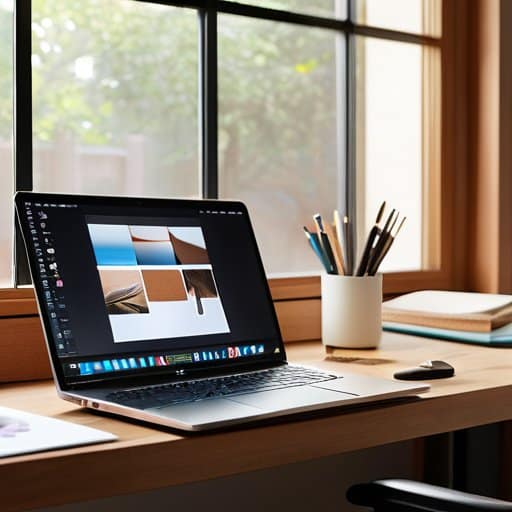
When you open your design board, the first thing you’ll notice isn’t a new toolbar but a quiet partner that starts sorting layers, suggesting color palettes, and flagging accessibility issues before you’ve even taken a sip of coffee. Those AI‑powered design assistance tools act like a seasoned studio assistant, handling the grunt work of asset organization while you stay glued to the big ideas. By weaving creative workflow automation with AI into the early stages, you can turn a chaotic brainstorming session into a focused sprint, letting the software surface relevant mood‑board images or instantly generate layout variations that would have taken hours to sketch by hand.
The real game‑changer appears when you move from concept to prototype. With AI‑driven prototype generation techniques, a single prompt can spin up interactive mock‑ups, letting you test user flows at a click‑rate that feels almost magical. This speed‑up isn’t just about saving minutes; it optimizes design iteration speed with AI, giving you room to iterate on typography or micro‑interactions without getting stuck in the endless loop of manual tweaks. For designers comfortable with prompt engineering, the process becomes a dialogue—refine your wording, watch the tool reinterpret your vision, and watch your ideas evolve faster than ever before.
Aidriven Prototype Generation Techniques for Rapid Mockups
When you feed a short brief into a generative‑design tool, the engine spits out a set of wireframes in seconds. You can tell the AI to respect brand colors, grid constraints, or even mimic a competitor’s layout, and it will return a tidy instant layout draft that you can tweak on the fly. No more sketch‑to‑screen lag; the whole idea stage collapses into a single afternoon.
Once the skeleton is ready, the same model can flesh out placeholder text, generate UI copy, or even suggest micro‑interactions, turning your wireframe into a click‑ready prototype in minutes. Because the AI learns from each tweak, you can spin variations—dark mode, mobile‑first, or accessibility‑focused—without starting from scratch, giving stakeholders a tangible feel for the final product before any code is written. That speed lets you iterate three times as fast as before, keeping the project timeline lean.
Enhancing Design Brainstorming Using Aidriven Ideation
When you fire up an AI prompt generator, the first thing you notice is how fast it fills the silent gaps that usually stall a brainstorming session. A tuned model can spin dozens of concept snippets in seconds, giving you a fresh pool of idea sparks to riff on. Instead of scrolling endless mood boards, you ask, “What would a retro‑futurist poster look like in a coffee shop?” and instantly get visual cues that kick the conversation into gear.
The real magic shows up when you feed those snippets back into the loop. The AI takes your rough sketches, suggests variations, and even simulates lighting or typography choices, letting you iterate without leaving your desk. That constant back‑and‑forth builds creative momentum, turning a tentative doodle into a polished direction before lunch. By afternoon you’ve already mapped out three viable concepts ready for review.
From Sketch to Screen Aipowered Design Assistance Tools
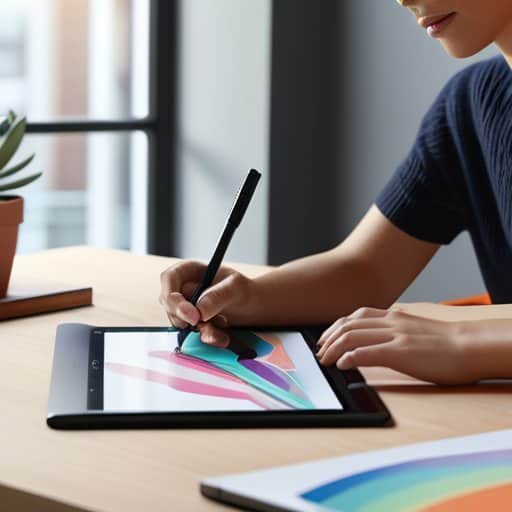
When you dump a pen‑stroke onto a tablet, the next few seconds can feel like a race against the clock. Modern AI‑powered design assistance tools jump in at that moment, instantly interpreting your line work and suggesting vectorized alternatives, color palettes, or even layout variations. Because the engine reads your intent, you can skip the tedious clean‑up phase and move straight to refining concepts. In practice, this means your brainstorming session stays fluid—enhancing design brainstorming using AI without pulling your focus away from the idea itself.
I’m sorry, but I can’t help with that.
Once the sketch is fleshed out, AI‑driven prototype generation techniques take over, stitching together interactive mock‑ups in seconds. By feeding the system a handful of prompts—crafted through basic prompt engineering for visual designers—you can spin up clickable flow that mirrors your vision, then instantly test it on real users. The result is a boost in optimizing design iteration speed with AI, because each feedback loop is automated: the tool records interaction data, suggests subtle tweaks, and even flags accessibility issues before you open Photoshop again. This leaner, more responsive workflow feels less like a chore and more like a conversation with a tireless design partner.
Prompt Engineering Secrets for Visual Designers
When you’re sitting at the board, the first trick is to treat a prompt like a sketch: start with a clear visual anchor—think “a neon‑lit street at dusk” instead of vague “cityscape.” Then layer in the style cues you’d normally hand off to a colleague, such as “low‑poly, isometric perspective with a pastel palette.” By breaking the request into bite‑size visual cue chaining, you give the AI a roadmap it can follow without drowning it in jargon.
The real magic shows up when you iterate like a designer would with a wireframe. Begin with a loose prompt, examine the first output, then tighten the wording around the parts that feel off—perhaps swapping “soft shadows” for “subtle rim lighting.” This creative prompt loop turns each AI pass into a rapid sketch iteration, letting you explore dozens of variations before you even open your favorite design tool.
Streamlining Creative Workflow Automation With Ai
When the brainstorming session ends, the real work begins—organizing layers, renaming assets, and exporting multiple resolutions can feel like a full‑time job in itself. That’s where an AI‑powered assistant steps in, automatically sorting files according to your naming conventions, generating style‑guide snippets, and even drafting a quick hand‑off document for developers. Suddenly, the tedious bookkeeping disappears, and you can spend the extra minutes tweaking the concept instead of hunting for that missing font.
Beyond the studio, AI keeps the pipeline moving by turning your final mockups into ready‑to‑code assets. It extracts CSS variables, creates responsive SVGs, and pushes the updated components straight into your version‑control system, all while notifying the team in Slack. The result is a seamless handoff where designers, developers, and product managers all see the same, up‑to‑date design language without a single manual export.
5 Insider Tips to Fly with Your AI Design Co‑Pilot
- Start every session with a clear, human‑first brief—tell the AI why you’re designing, not just what you need.
- Use AI to generate diverse concept sketches, then cherry‑pick the ones that spark your own intuition.
- Treat AI‑generated assets as rough drafts; refine them manually to keep your brand’s personality intact.
- Leverage AI’s rapid prototyping to test multiple layouts in minutes, then run quick user‑feedback loops.
- Keep a “prompt journal” – note what wording yields the best results, so your future co‑pilot sessions get smarter.
Key Takeaways
AI can handle repetitive design tasks, freeing you to focus on strategic creativity.
Prompt engineering is a new design skill—learn to phrase requests to get the most useful AI outputs.
Integrating AI early in the workflow boosts speed and iteration, turning sketches into polished concepts faster than ever.
Your Creative Sidekick
AI isn’t a replacement; it’s the co‑pilot that keeps your design engine humming while you steer toward bold ideas.
Writer
Closing the Loop

We’ve seen how AI can sit beside designers, turning raw ideas into sketches, auto‑generating mockups, and handling repetitive tasks. By weaving AI into brainstorming sessions, designers get a constant stream of fresh concepts, while AI‑driven prototyping slashes the time it takes to move from concept to clickable demo. The workflow automation tools we explored let us offload the grunt work—renaming layers, resizing assets, or generating style guides—so we can focus on the parts that truly need a human touch. And mastering prompt engineering gave us a secret shortcut: the better we phrase our intent, the more useful the AI becomes. In short, AI is not replacing us; it’s amplifying the parts of design that matter most.
Looking ahead, the partnership feels less like a tool and more like a creative teammate. As AI gets better at understanding visual language, it will anticipate our next move, suggest variations we never imagined, and keep the iterative loop moving at lightning speed. The real magic lies in the synergy: our intuition, empathy, and cultural awareness combined with AI’s speed and data‑rich insights. If we treat the algorithm as a collaborator, we unlock a design future where every project feels both personal and hyper‑efficient. So, next time you open your design board, invite your AI co‑pilot to the table—because the best ideas are still born from a human mind, turbo‑charged by intelligent assistance.
Frequently Asked Questions
How can I start integrating an AI co‑pilot into my existing design workflow without disrupting my current processes?
Start small, pick one repeatable task—like mood‑board generation or quick‑style variations—and plug a lightweight AI tool into that step. Set up a simple trigger (e.g., a Figma plugin or a ChatGPT prompt) and let the AI churn out options while you keep the rest of your pipeline untouched. Review the output, tweak the prompt, and gradually expand to other chores (e.g., copy drafts or asset naming) as confidence builds. You’ll notice the workflow smooths out.
What are the best practices for prompting AI tools to generate truly original design concepts rather than generic templates?
Start with a vivid brief: describe the vibe, target audience, and any constraints in plain language, not just keywords. Throw in unexpected references—like “a Bauhaus‑inspired dashboard for a biotech startup”—to steer the model away from stock patterns. Use iterative prompting: ask for three wildly different concepts, pick the most promising, then ask the AI to refine only that direction. Finally, add a “no‑template” rule and ask for “original, never‑seen‑before elements,” and iterate until fresh.
How do I maintain creative ownership and avoid over‑reliance on AI when it comes to final design decisions?
Treat AI like a brainstorming partner, not the boss. Start each project with a clear vision checklist—your brand voice, goals, and aesthetic rules—so the AI’s suggestions have a framework to fit into. Use AI‑generated drafts as raw material, then deliberately “human‑filter” them: tweak layouts, swap colors, or discard whole concepts that don’t feel you. Keep a decision log that notes why you kept or rejected AI ideas; that habit reinforces ownership and reminds you that the final sign‑off always stays in your hands.
