Did you know about 70% of Chromecast users stream their favorite shows and music? This shows how popular Chromecast is for home entertainment. Knowing how to set up Chromecast is key for a great home cinema experience. This guide will help you get started with Chromecast and enjoy streaming.
Setting up Chromecast is easy, from unboxing to connecting it to your TV. I’ll cover the basics, including using the Google Home app. With a good Chromecast setup, you can mirror your screen and enjoy streaming. Whether it’s Netflix or Spotify, the options are endless with just a few steps.
Key Takeaways
- Chromecast enhances your multimedia experience by allowing easy streaming from mobile devices.
- The Google Home app is available on both iOS and Android for seamless Chromecast setup.
- Approximately 30% of new users encounter setup challenges, so following a guided process is beneficial.
- Seamless integration with smart home devices is common, as 70% of owners utilize Chromecast with additional gadgets.
- With proper setup, you can enjoy screen mirroring and access a variety of streaming platforms effortlessly.
Getting Started with Chromecast
Starting your streaming journey is simple and exciting. First, let’s look at the Chromecast unboxing. When I opened the box, I found the Chromecast, a USB cable, and an AC adapter. The packaging is small, making it easy to store.
Unboxing Your Chromecast Device
As I unpacked, my excitement grew. The Chromecast is sleek and fits well in any setup. It shows great attention to detail, ensuring a smooth setup.
Connecting Chromecast to Your TV
Next, I connected Chromecast to my TV. I plugged it into the HDMI port. Then, I connected the USB cable to the device and the power adapter. It’s important to use this adapter for the best performance.
After plugging the adapter into a socket, I changed the TV input to the HDMI channel. Right away, I saw a welcome screen showing the system was ready.
Chromecast Setup Steps
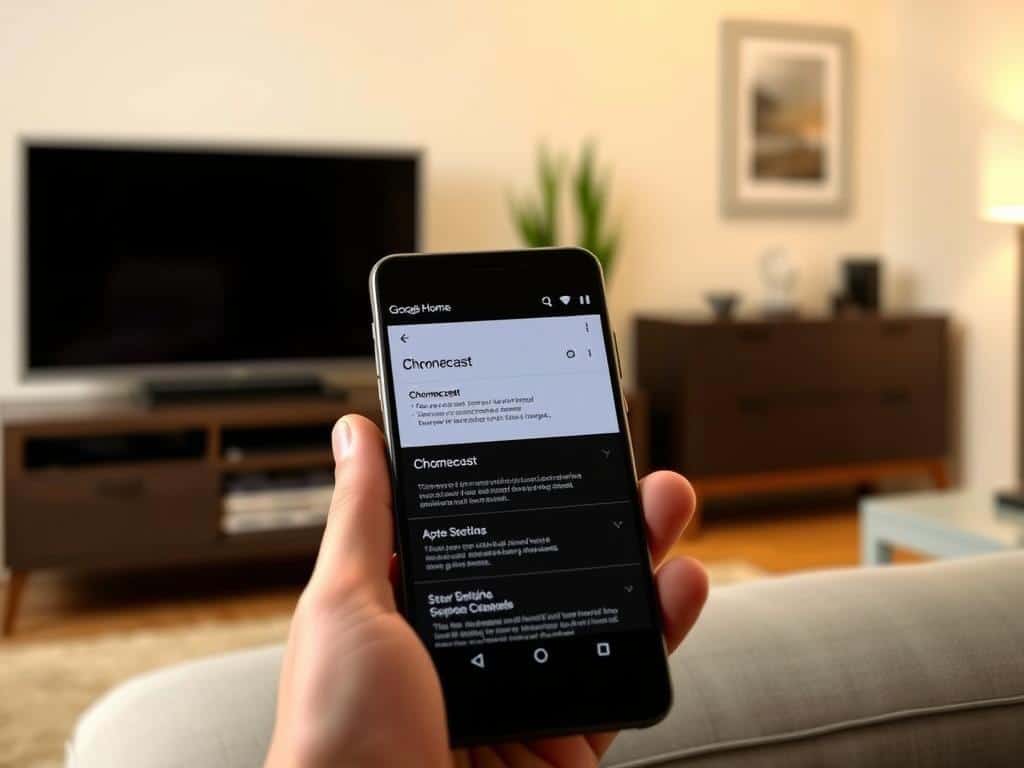
Setting up your Chromecast is easy. You need the Google Home app to control your device and guide you. This app is available on the App Store and Google Play Store. It makes setting up your Chromecast quick and hassle-free.
Download the Google Home App
I start by downloading the Google Home app on my phone or tablet. Most Android devices already have it. If not, it’s easy to find. Once I open the app, I choose to set up a new device.
The app finds my Chromecast and asks me to confirm a code on my TV screen. This step is key to connect correctly to the Wi-Fi connection.
Completing the Setup
Then, I follow the app’s prompts. I need to link to my Wi-Fi network. It’s important that my phone is on the same network for a successful setup.
If my Chromecast supports guest mode, I’ll see that option. The whole setup usually takes less than ten minutes. Now, my Chromecast is ready for streaming on different platforms.
Conclusion
Setting up my Chromecast has changed how I watch content. It’s only $35, but it’s packed with features. I can easily stream from Netflix and YouTube to my TV.
It’s connected to my entertainment system now. This lets me watch movies or listen to music on my TV. It’s become a central spot for all my entertainment needs.
There have been some small problems, like video issues and audio problems. But the good stuff far outweighs these. I can watch local videos and it works with many devices.
Chromecast beats AirPlay in many ways, thanks to its wide compatibility. It’s clear Chromecast is a top choice for streaming.
My Chromecast journey has shown me how much better streaming can be. With a little patience, I’ve made a big difference. It’s made watching movies and shows more fun than ever.
By choosing Chromecast, I’ve opened up a world of entertainment. Now, I can enjoy all sorts of content from my living room. It’s a game-changer for my viewing habits.
