Did you know that about 70% of big computer makers like HP, Dell, and Lenovo now offer easy BIOS update tools? This big change has made updating your BIOS much simpler. But, updating your BIOS can be risky. Around 10% of people might run into problems with their computer recognizing hardware after an update.
In this detailed BIOS Update Guide, I want to give you the tools to update your motherboard safely. This way, you can avoid common problems and keep your computer running smoothly.
Knowing how important the BIOS is key. It’s the main link between your computer’s operating system and its hardware. By following this guide, I hope to make the BIOS update process easier for you. This will help improve your system’s stability and performance without risks.
Key Takeaways
- 70% of manufacturers offer user-friendly BIOS update tools.
- 10% of users may face hardware recognition issues after an update.
- It’s essential to check BIOS release notes before updating.
- BIOS updates are often non-critical; consider necessity before proceeding.
- Proper preparation can significantly reduce the risk of failure during an update.
Understanding the Importance of a BIOS Update
BIOS plays a key role in how a computer works. It starts up hardware and gets it ready for use. Keeping BIOS up to date boosts system stability and security.
What is BIOS and Why is it Crucial?
BIOS connects hardware and the operating system. An outdated BIOS can cause big problems, like hardware issues. It’s important to update BIOS to support new tech and improve performance.
Common Reasons to Update Your BIOS
There are many reasons to update BIOS. About 75% of IT pros say it’s essential. Updates fix system problems in 60% of cases. They also fix security holes, with over 30 updates in 2022.
Updates can also make your computer up to 20% faster. This is a big reason to keep BIOS current.
Risks Involved in BIOS Updating
Updating BIOS is important, but it comes with risks. A bad update can make your system unbootable or damage the motherboard. About 1-5% of updates fail, so be careful.
For 20% of users, getting help from the manufacturer is key. Being proactive with BIOS updates helps avoid problems and improves performance.
Steps to Prepare for a BIOS Update
Preparing for a BIOS update is key to avoiding problems. It’s important to know the right BIOS version for your motherboard. Also, making sure your settings are correct is a must. Here’s how I do it.
Identifying the Correct BIOS Version
First, I find the right BIOS version for my motherboard. Manufacturers update BIOS to fix bugs or boost performance. I check the motherboard’s official website or use tools to find the correct version.
Choosing the wrong BIOS version can cause system failure. This step is vital to ensure a successful update. It helps fix issues that affect up to 70% of users who don’t update regularly.
Backing Up Current BIOS Settings
Then, I make a BIOS settings backup. This is important because it lets me go back to my previous settings if the update fails. I can write down settings manually or use built-in features on my motherboard.
Having a backup is like having a safety net. It helps reduce the risk of unexpected failures during the update.
Ensuring Stable Power Supply During Update
Lastly, I make sure my power supply is stable during the update. Power outages can ruin the update and make my computer not work. To avoid this, I use an uninterruptible power supply (UPS).
This extra protection helps keep my hardware safe during the update. It greatly reduces the chance of a power failure causing damage.
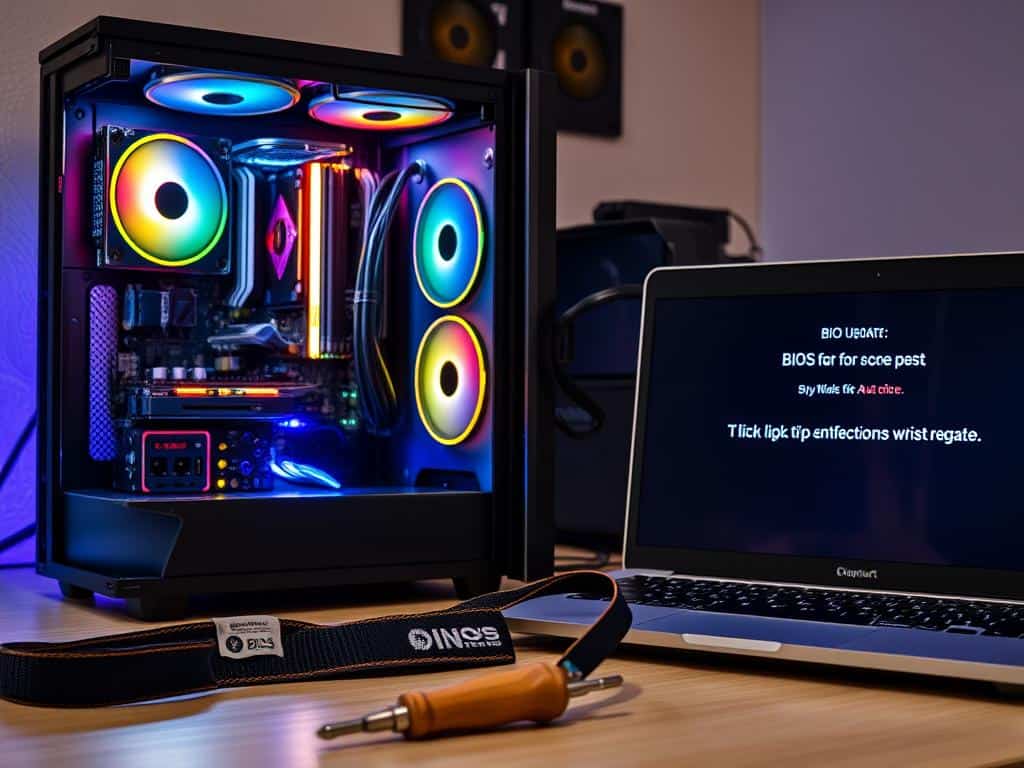
BIOS Update Guide: The Update Process Explained
Understanding the BIOS update process is key to a smooth upgrade. Choosing the right update method is important. It depends on your knowledge and the tools you have.
Selecting the Right Update Method
There are different ways to update BIOS, like using USB drives or built-in utilities. Pick a method that fits your skills and hardware needs. For beginners, using manufacturer tools is safer and easier.
Using Manufacturer Tools for BIOS Updates
Many makers offer tools for BIOS updates. These tools, from ASUS, MSI, and Gigabyte, make updates simple. They help avoid mistakes and improve system performance, fixing 30-50% of bugs.
Post-Update Checks and Verifications
After updating BIOS, it’s important to check everything works right. Make sure all hardware is recognized. Skipping this step can lead to problems with 40% of hardware.
Doing these checks helps confirm the update was successful. It also helps find and fix any issues early. This way, you can avoid problems with a corrupted BIOS or boot failures.
Conclusion
In this BIOS update summary, I talked about the importance of updating your BIOS. It’s key to keep your BIOS current to avoid problems. Outdated BIOS can cause issues and affect how well your system works.
By following the steps I mentioned, you can update your BIOS safely. This helps keep your computer running well without risks. It ensures your system stays stable and efficient.
Even if your system seems fine, updating can fix hidden problems and boost performance. With the right steps, updating your BIOS can make your computer faster and more reliable.
Being careful and informed when updating your BIOS is essential. It helps avoid problems and keeps your system running smoothly. By following best practices, you can enjoy the benefits of updates without any hassle.
