Did you know many users don’t change their Smart TV’s picture modes? This can mean missing out on a better viewing experience. Setting up a Smart TV can seem hard because of all the features and settings. But, with a simple Smart TV Setup Tutorial, you can easily set it up and enjoy all it has to offer.
Today’s TVs, like 4K HDR models, have gotten much better. They offer improved picture quality and a better user experience. With platforms like Google TV, Roku, or Tizen, finding your favorite streaming services is easy. In this article, I’ll show you how to set up your home entertainment system for the best viewing experience.
Key Takeaways
- Location is key; make sure your viewing distance matches the screen size.
- Different picture modes greatly affect how you see colors and the overall experience.
- Having the right wireless or wired connections is vital for streaming services.
- Knowing your TV’s features can make your viewing experience much better.
- Optimal calibration can improve your TV’s picture quality.
Choosing the Right Location for Your Smart TV
Finding the perfect spot for your TV is key for a better viewing experience. I need to think about how far it is from the screen and where it’s placed. This ensures clear pictures and less eye strain during long watch times.
Understanding Optimal Viewing Distance
To get an immersive feel, knowing the best viewing distance is important. It’s usually between 1.5 to 2.5 times the screen size. For instance, a 55-inch TV looks best from 6 to 8.5 feet away.
This distance helps avoid pixelation and lets me see all the details. Keeping these guidelines in mind can greatly improve my viewing experience.
Considerations for Wall-Mounting vs. Stand
Choosing between wall-mounting and a TV stand has its pros and cons. Wall-mounting makes the room look cleaner and improves sightlines. It’s better for everyone to see the screen clearly.
I should pick a wall bracket that lets me tilt and swivel the TV. On the other hand, a TV stand needs to be at the right height and have enough room for my devices. It’s important to consider these factors to find the best TV spot and keep things tidy.
Essential Smart TV Setup Tutorial
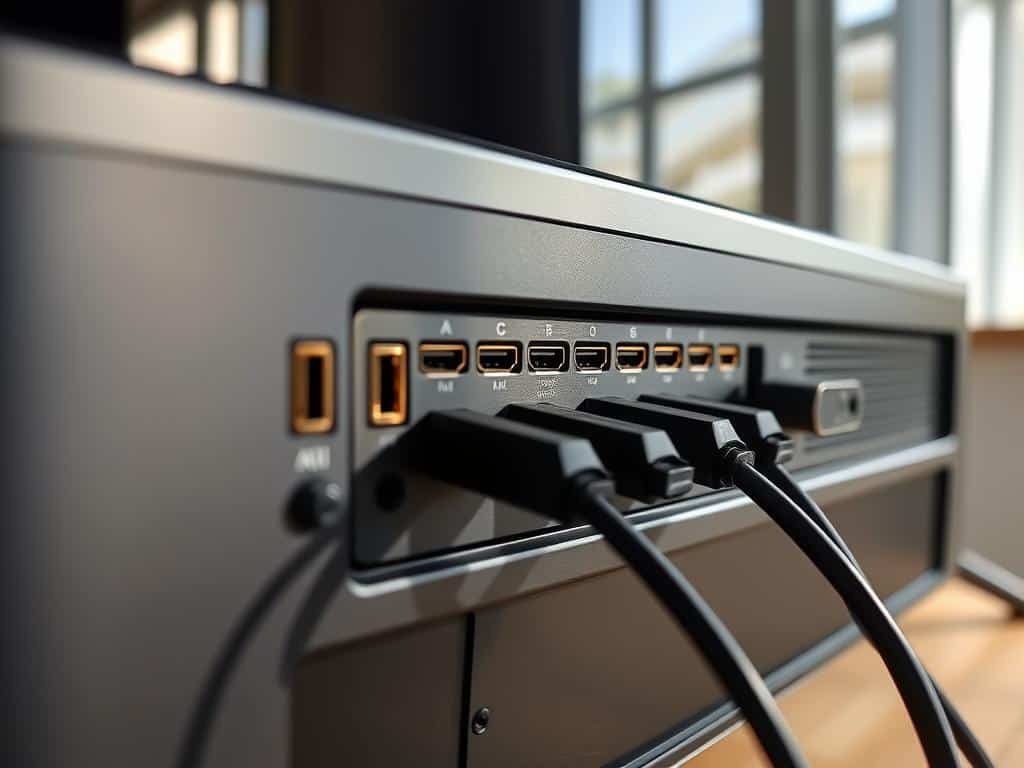
Setting up my Smart TV is a big step. It lets me enjoy all its features and content. First, I need to make sure my HDMI connections are good. This is key for high-definition signals from devices.
I should label each cable. This makes it easier to fix any connection problems later.
Connecting Your Smart TV: HDMI and More
After connecting my Smart TV to streaming devices via HDMI, I also connect sound systems or gaming consoles. Many prefer wired connections for better quality and less buffering. Keeping HDMI ports organized helps make setup more efficient.
Wi-Fi Setup: Getting Connected
Wi-Fi setup is next for online content access. Most Smart TVs make this easy by guiding through network connection. I just need to enter my Wi-Fi password for a secure link.
Some might face connection issues, so patience is important. A strong Wi-Fi connection opens up a lot of streaming options.
Installing Streaming Apps for Your Favorite Content
Now, the fun part: installing streaming apps. I go to the TV’s app store to find popular apps like Netflix and Hulu. Downloading these apps makes watching shows better.
Users often say they’re happier when they pick their favorite apps. With my Smart TV set up, I’m ready for hours of fun.
Adjusting Settings for Optimal Picture Quality
After setting up my Smart TV, I focus on adjusting settings for the best picture quality. Choosing the right picture mode is key. Modes like “Cinema,” “Movie,” or “Filmmaker” improve color accuracy by removing unnecessary enhancements.
Starting with the Correct Picture Mode
Choosing the right mode is essential for a better TV display. These settings show colors and details naturally, making movies and shows more enjoyable. Many TVs start with modes like Standard or Vivid, which can make colors look off. Switching to a dedicated mode can greatly improve how we see details.
Fine-Tuning Brightness and Contrast Settings
Once I pick the right mode, I adjust brightness and contrast. Brightness controls the dark parts of the image. If it’s too high, the picture looks flat. If it’s too low, details in shadows get lost.
Contrast affects the bright parts of the image. Too much adjustment can make bright scenes lose detail. I use content with both bright and dark areas to find the best contrast.
Managing Sharpness and Color Temperature
Sharpness control is also important. Too much sharpness can blur details instead of making them clearer. I keep sharpness low for a natural look. Adjusting color temperature to a warm level makes colors look more lifelike.
Conclusion
Setting up my Smart TV was a game-changer. I picked the perfect spot, making sure the screen was the right size for viewing. Whether to mount it on the wall or use a stand was a choice that made it look great and feel comfy.
Connecting everything was key. I used HDMI and made sure my internet was strong. Streaming services like Netflix and Hulu really upped my game. Knowing about different operating systems helped me pick the best apps.
Adjusting the picture settings and using special features like Game mode made a big difference. These steps helped me get the most out of my Smart TV. With a little effort upfront, I’m set for years of great entertainment at home.
