A 2017 study found that people felt less distracted and more productive after a break from notifications. This shows how important a tidy workspace is. The Windows taskbar is key for managing tasks. With Windows 11’s new design, many find it too big. But, you can make it better with Taskbar Customization.
By tweaking settings like the Registry Editor, you can move and resize icons as you like. You can also make the taskbar transparent to match your style. Tools like TranslucentTB can take it even further. This article will show you how to make your taskbar work better for you.
Key Takeaways
- Understanding your Windows Taskbar can vastly improve productivity.
- Pinning and unpinning applications is essential for quick launch functionality.
- Icon size adjustments can help in organizing apps effectively.
- Changing taskbar position and experimenting with visibility options can enhance focus.
- Utilizing third-party tools provides advanced customization possibilities.
- Taskbar settings can be tailored for both single and multi-monitor setups for better workflow.
- Customization potentially minimizes distractions, resulting in increased productivity.
Understanding the Windows Taskbar Structure
The Windows Taskbar is a key part of the Windows interface. It helps users manage their tasks efficiently. By knowing its layout, I can work better and faster.
It’s great for multitasking and accessing apps quickly. This boosts my productivity and helps me stay organized.
Key Components of the Taskbar
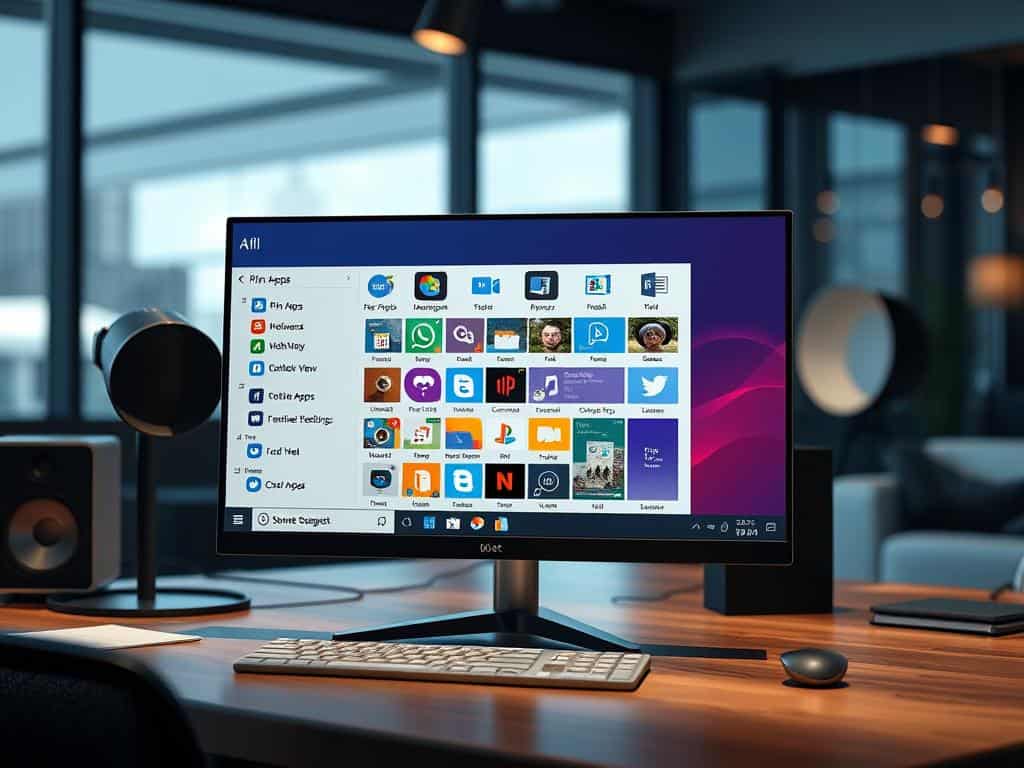
The Taskbar has important parts that make it easy to use. On the left, I find the Start menu, search bar, Task View, and pinned apps. The center shows running apps.
The right side has system tray icons, quick actions, notifications, and settings like volume and network. Knowing these parts helps me navigate and organize better.
Importance of Taskbar Layout for Different Users
Users have different needs, and the Taskbar can meet them. Students need a simple layout to focus on school tools. Workers in fast-paced jobs benefit from quick access to apps.
Kiosk operators need a simple interface for fast service in retail and public sectors. Customizing the Taskbar for these needs makes my work environment more efficient.
Taskbar Customization Techniques
Customizing my Windows Taskbar boosts my productivity and makes using my computer easier. I can adjust the taskbar to match my work style and personal taste. Here are some ways to do it.
Pinning and Unpinning Applications
Pinning apps is a great feature for quick access to my favorites. I can pin apps by right-clicking on them from the Start menu or taskbar. This creates shortcuts, making it easier to find my go-to tools.
Adjusting Icon Sizes for Better Organization
Changing icon sizes helps me organize my taskbar better. With small taskbar icons, I can fit about 30% more icons in the same space. This makes my workspace neater and helps me find apps faster.
Changing Taskbar Position and Visibility Settings
Moving the taskbar changes my desktop look. I can place it at the bottom, top, or sides. The auto-hide feature keeps it out of the way when not needed. I can also align it to the left or center for a unique look.
Utilizing Third-Party Tools for Advanced Customization
While Windows has great customization options, third-party tools offer more. Tools like TranslucentTB and StartAllBack let me tweak transparency and icon behavior. They also bring back features lost in updates, making customization easier and more enjoyable.
Conclusion
Customizing the Windows Taskbar is more than just making it look good. It’s key to making your workspace better. By making it fit your needs, you can boost your productivity.
Changing icon sizes, pinning apps, and using tools can make a big difference. You can resize the Taskbar or hide it when not needed. This gives you a clear view, helping you stay focused.
Jump lists and notifications also make things easier. They let you quickly access what you need. This makes your work more efficient.
Customizing your Taskbar makes your digital space more organized. It lets you focus on your work better. Having a workspace that fits you can really improve how you use technology every day.
