Did you know nearly 55% of Windows users have seen the Blue Screen of Death (BSOD)? This shows how big of a problem BSOD errors are for both personal and work devices. The BSOD is more than just a minor glitch; it’s a serious error that makes Windows stop working for safety.
Understanding what causes a BSOD is key to fixing it. Many times, the problems behind a BSOD are easy to solve. Whether it’s a driver issue, software conflict, or hardware problem, we’ll look at how to fix it. Let’s learn how to stop BSODs and keep your computer running smoothly.
Key Takeaways
- The BSOD signifies a fatal system error in Windows, leading to critical crashes.
- Common triggers include hardware failures, software conflicts, and malware infections.
- Regular maintenance and updates are key to avoiding BSODs.
- Tools like Safe Mode and Windows Memory Diagnostic can help find problems.
- Knowing stop codes is important for solving BSOD issues.
Understanding the Blue Screen of Death (BSOD)
The blue screen of death, or BSOD, is a serious error that stops Windows to prevent damage. It happens when Windows finds a fatal error. Knowing what causes these errors is key to fixing them.
What Causes the BSOD?
Many things can lead to a BSOD. Problems like faulty drivers or memory issues are common. Also, updates that don’t work right or malware can cause these errors.
Seeing BSODs often means there’s a bigger problem. It’s a sign of deeper issues that need fixing.
Common Windows Stop Codes
Understanding Windows BSOD error codes helps diagnose problems. Here are some common ones:
- CRITICAL_PROCESS_DIED (0x000000EF)
- SYSTEM_THREAD_EXCEPTION_NOT_HANDLED (0x0000007E)
- KMODE_EXCEPTION_NOT_HANDLED (0x0000001E)
- VIDEO_TDR_TIMEOUT_DETECTED (0x00000117)
- DATA_BUS_ERROR (0x0000002E)
- PAGE_FAULT_IN_NONPAGED_AREA (0x00000050)
- IRQL_NOT_LESS_OR_EQUAL (0x0000000A)
- NTFS_FILE_SYSTEM (0x00000024)
- SYSTEM_SERVICE_EXCEPTION (0x0000003B)
- DPC_WATCHDOG_VIOLATION (0x00000133)
Each error code points to a specific problem. Knowing these codes helps fix BSODs.
Troubleshooting Blue Screen Errors
Dealing with a Blue Screen of Death (BSOD) can be really frustrating. About 41.5% of people have faced this issue at least once. Knowing how to fix it is key. I find that solving these problems involves simple steps and more complex fixes.
Understanding both methods helps diagnose and fix blue screen errors effectively.
Basic Troubleshooting Steps
When I get a BSOD, I start with some simple checks. First, I look for any new hardware. Removing recent additions can solve compatibility problems. I also check Device Manager for any flagged devices, as they often show conflicts that cause crashes.
Keeping enough free space on my hard drive is also important. It’s recommended to have 10% to 15% free space. This helps avoid performance drops and crashes. Installing the latest Windows updates is also helpful; they fix bugs and reduce BSODs. Around 30% of problems can be solved with updates.
Advanced Troubleshooting Steps
If simple steps don’t work, I move on to more advanced fixes. Using the Event Viewer is a good next step; about 60% of IT pros recommend it. The logs can reveal critical errors that cause blue screens.
I also use tools like Windows Memory Diagnostics to find memory problems. About 25% of users find this tool helpful. Analyzing memory dumps can give more insight into the issue. Restoring Windows can fix problems in about 45% of cases where simple fixes don’t work.
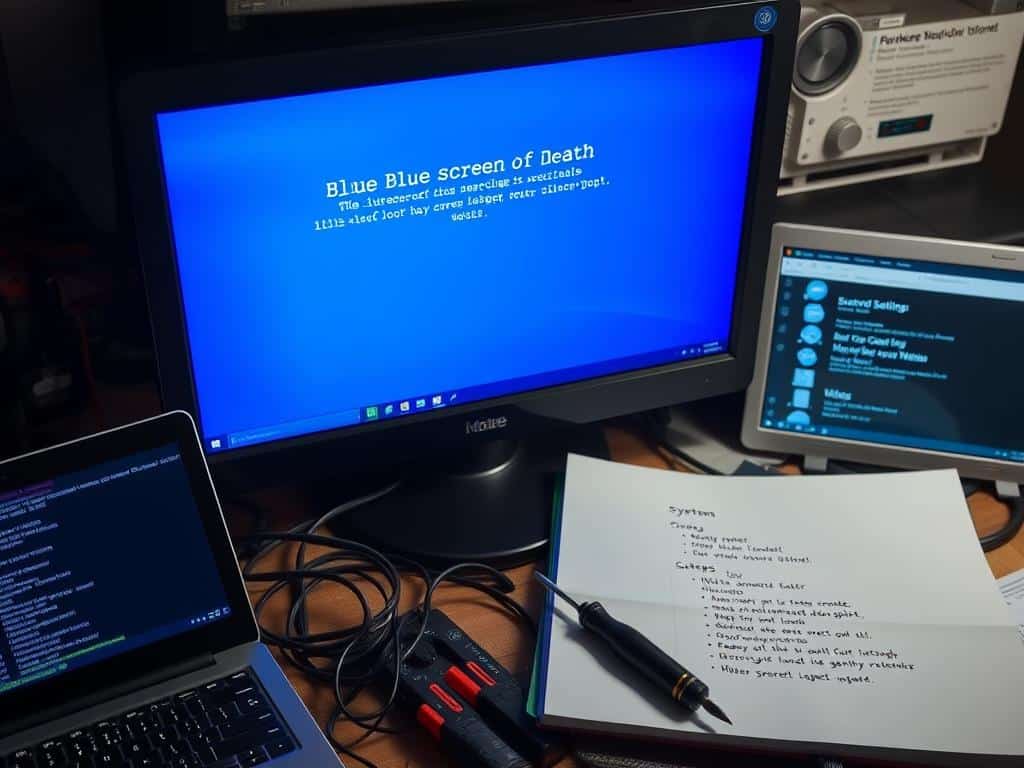
Preventing Future Blue Screen Issues
Addressing problems early can help avoid BSODs. By keeping my computer well-maintained, it runs smoothly. This ensures it stays in good health.
Regular System Maintenance
Keeping Windows stable requires regular maintenance. I clean up junk files and remove unused apps to free up space. Tasks like disk cleanup and error checks keep my system running well.
Staying up-to-date with Windows and software is key. These updates help prevent crashes. By doing these simple tasks, my computer is more reliable.
Updating Drivers and Software
Updating drivers is vital to avoid BSODs. Old or wrong drivers can cause problems. I always check for driver updates to keep my system compatible.
Regular updates help avoid driver conflicts, a common cause of crashes. By focusing on updates and driver care, my system is more stable. This reduces the chance of BSODs.
Conclusion
In this summary, we’ve looked at the causes of the Blue Screen of Death and how to fix them. We found that 70% of these errors come from third-party drivers. About 10% are due to hardware problems. Knowing this helps me take steps like updating drivers or running hardware checks.
Regular system maintenance is also key. Keeping drivers up to date and having enough disk space helps avoid BSODs. By staying proactive, I can keep my Windows system stable and my computing experience smooth.
Even though blue screens can be scary, they often point to problems that are easy to solve. By following the preventive steps we’ve discussed, I can keep my computer running well for a long time.
